
template
YouTube Thumbnail Template
Use this YouTube thumbnail template with a 3840 × 2160 px 16:9 canvas, format notes, mobile-safe text placement and export checks.
Last checked: 2026-05-03
How we calculate this
Methodology and source handling
We start with the platform placement, confirm the recommended pixel canvas and aspect ratio from the listed sources, then document safe-area and export guidance for the template.
Quick answer
Copy-ready answer
Create YouTube thumbnails at 3840 × 2160 px with a 16:9 aspect ratio. Keep the main subject and text away from the outer edges, because thumbnails are displayed at many sizes and may be cropped or masked in some placements.
Safe area
Design inside the crop-safe area
Use this guide to keep text, logos, faces, products, and calls to action away from crop-risk edges.
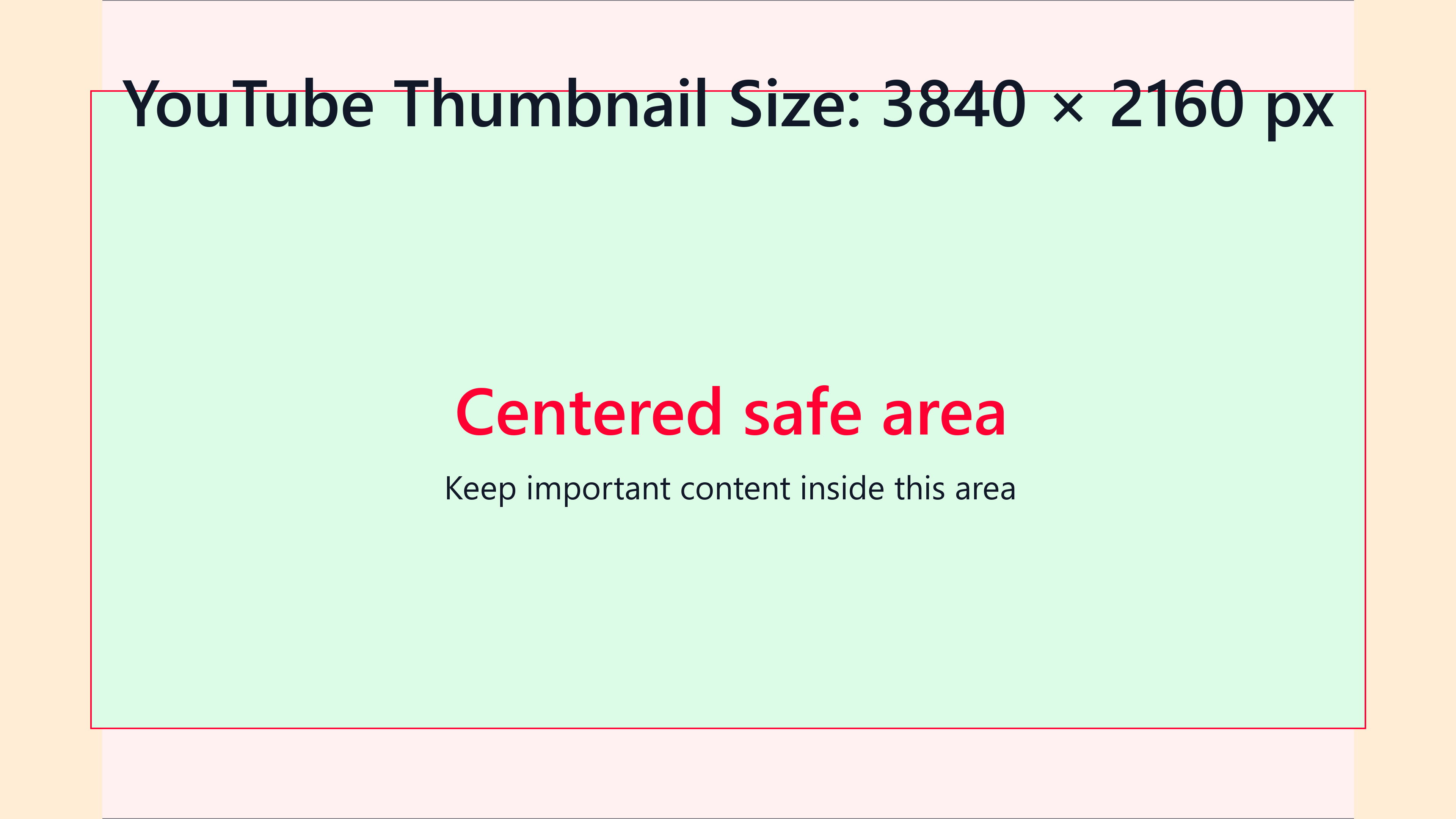
Dimensions and specs
| Recommended working canvas | 3840 × 2160 px | |
|---|---|---|
| Aspect ratio | 16:9 | |
| Practical smaller export | 1280 × 720 px | |
| Minimum width noted by YouTube | 640 px | |
| Common formats | JPG, GIF or PNG | |
| Text placement | Center-weighted, away from edges |
Formula
How to calculate this size
Export at the recommended pixel canvas before upload or handoff.
Reduce width and height by their greatest common divisor.
Use fit for no crop, fill or center crop for exact coverage, or pad when borders are acceptable.
Export checklist
Before you upload
Create the artboard at the template dimensions before placing content.
Keep critical details inside the safe zone and treat the outer edge as crop or bleed risk.
Resize a finished image locally when the destination needs a PNG, JPG, or WebP export.
Common mistakes
Avoid these template setup mistakes
Keep the most important content inside the guide area so responsive crops, bleed trimming, or platform overlays do not hide it.
Scaling the template into a different shape can stretch artwork or crop text; compare sizes before adapting.
Keep the editable SVG or source layout, export PNG/JPG for upload, and use PDF when you need a handoff or print guide.
Templates
Download starter files
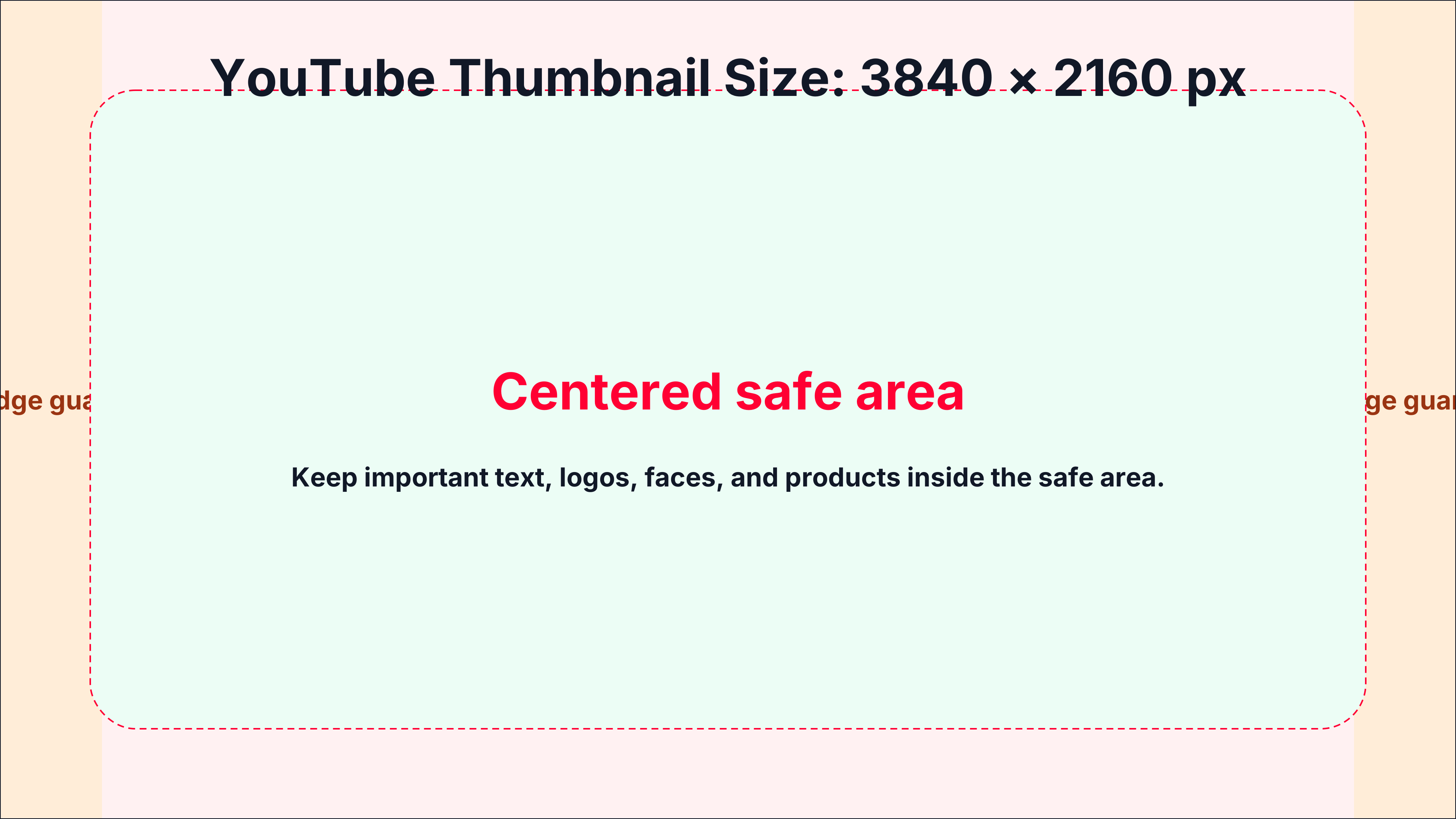
Use the SVG, PNG, or PDF starter as a visible guide for the full canvas, safe area, bleed, and crop-risk edges.
Calculator
Check aspect ratio and screen pixels
Use the prefilled target, swap orientation if needed, and copy the reduced ratio before preparing screenshots or previews.
Compare
Compare YouTube Thumbnail Template
Open a curated comparison or send both sizes into the compare tool with a fragment URL.
Platform notes
Requirements and crop behavior
Guidance
Design checklist
- Start with a 3840 × 2160 px canvas.
- Put the subject near the center, not flush against the edge.
- Use short text. Three to five words usually works better than a full title.
- Preview the thumbnail at small sizes before publishing.
- Export in JPG or PNG according to your workflow.
- Check that the file size fits YouTube’s upload limits for the device and flow you are using.
Workflow
Setup steps
Canva
Create a custom design at 3840 × 2160 px. Add a center guide and keep all text inside a generous margin. Export as JPG for fast upload or PNG if the thumbnail includes flat graphics, logos or text.
Photoshop
Create a new file at 3840 × 2160 px. Use large text and view the design at 25% or smaller to test readability. Export a compressed JPG or PNG and compare file size before uploading.
Figma
Create a frame at 3840 × 2160 px. Place the main subject and text inside a central safe zone. Export at 1x. If the file is too large, export a 1920 × 1080 px or 1280 × 720 px fallback while preserving the 16:9 ratio.
Template
Template zones
| Zone | Purpose | Guidance |
|---|---|---|
| Full canvas | The image you export | Use the full 3840 × 2160 px area for the visual background |
| Primary subject zone | Face, product, object or scene | Keep it within the central two-thirds so it remains readable when scaled down |
| Text zone | Short title, number or hook | Use large text; keep it clear of the top and bottom edges |
| Edge caution zone | Outer margin | Avoid tiny logos, thin lines and subtitles near the edge |
Guide
Why 16:9 matters
YouTube players and previews commonly use a 16:9 shape. A thumbnail that is 3840 × 2160 px, 1920 × 1080 px or 1280 × 720 px has the same ratio. The larger canvas gives designers more source pixels to downscale, sharpen and export without jagged edges.
Template
Safe-area, bleed, and crop notes
Use the downloadable guide as the full canvas. Keep critical content inside the safe area, extend backgrounds to bleed or crop-risk edges when needed, and export only after checking the destination page.
| Download | Best use |
|---|---|
| SVG | Editable vector starter file for layout tools. |
| PNG | Quick raster preview or upload starting point. |
| Shareable layout guide for print, handoff, or review. |
Related
Related pages and tools
Same branch
Nearby pages
FAQ
Common questions
What size should a YouTube thumbnail be?
Use 3840 × 2160 px as a high-resolution working template. A 1280 × 720 px image is still a common practical 16:9 export when file size or editor limits matter.
What aspect ratio is a YouTube thumbnail?
A YouTube thumbnail should use a 16:9 aspect ratio.
Can I use 1920 × 1080 px?
Yes, 1920 × 1080 px is the same 16:9 ratio. Use 3840 × 2160 px when you want a larger source file and 1920 × 1080 px when you need a lighter export.
How do I make thumbnail text readable?
Use fewer words, strong contrast and large letterforms. Preview the image small before uploading.
References
Sources and references
Original draft source confidence: official_platform_spec.
YouTube Help currently recommends large 16:9 thumbnails and lists upload formats, width guidance and device-specific file-size limits. PixelMeasures should keep the last-verified date visible because YouTube thumbnail limits can change.
-
YouTube Help: Add custom thumbnails on YouTube
Reviewed for this PixelMeasures article cluster.
Last checked: 2026-05-03