
template
Google Forms Header Template
Use a Google Forms header template with a practical 1600 × 400 px, 4:1 canvas, centered safe layout and upload-preview checklist.
Last checked: 2026-05-03
How we calculate this
Methodology and source handling
We start with the platform placement, confirm the recommended pixel canvas and aspect ratio from the listed sources, then document safe-area and export guidance for the template.
Quick answer
Copy-ready answer
Use a 1600 × 400 px canvas for a practical Google Forms header. That gives a 4:1 aspect ratio and enough resolution for a clean banner. Keep logos, text and important imagery centered because Google Forms may crop or reposition the header depending on layout and screen size.
Safe area
Design inside the crop-safe area
Use this guide to keep text, logos, faces, products, and calls to action away from crop-risk edges.
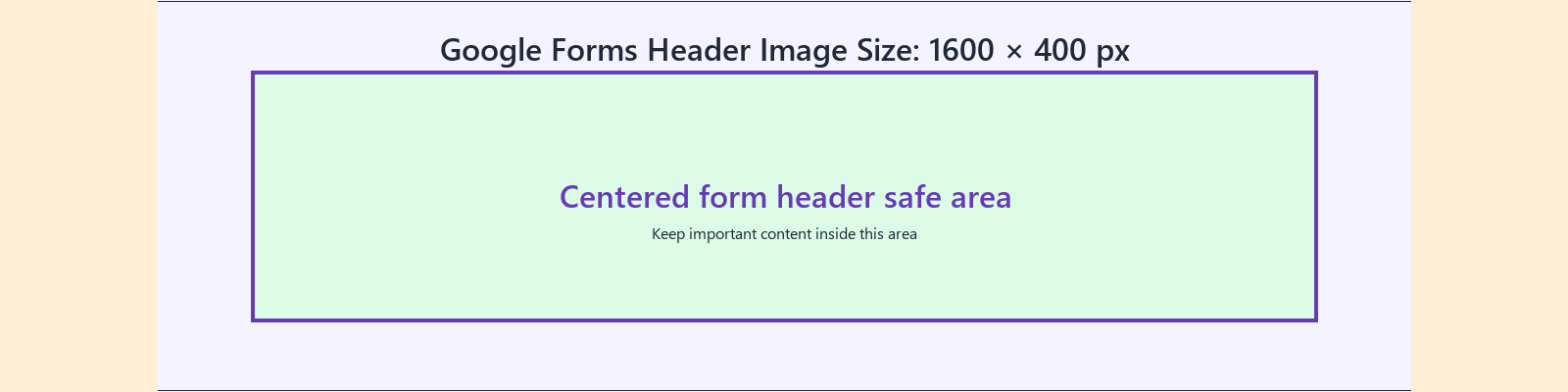
Dimensions and specs
| Practical canvas | 1600 × 400 px | |
|---|---|---|
| Aspect ratio | 4:1 | |
| Safe layout | Centered, with extra side padding | |
| Best use | Form branding, event headers, survey headers | |
| Source confidence | Practical target; verify by previewing in Forms |
Formula
How to calculate this size
Export at the recommended pixel canvas before upload or handoff.
Reduce width and height by their greatest common divisor.
Use fit for no crop, fill or center crop for exact coverage, or pad when borders are acceptable.
Export checklist
Before you upload
Create the artboard at the template dimensions before placing content.
Keep critical details inside the safe zone and treat the outer edge as crop or bleed risk.
Resize a finished image locally when the destination needs a PNG, JPG, or WebP export.
Common mistakes
Avoid these template setup mistakes
Keep the most important content inside the guide area so responsive crops, bleed trimming, or platform overlays do not hide it.
Scaling the template into a different shape can stretch artwork or crop text; compare sizes before adapting.
Keep the editable SVG or source layout, export PNG/JPG for upload, and use PDF when you need a handoff or print guide.
Templates
Download starter files
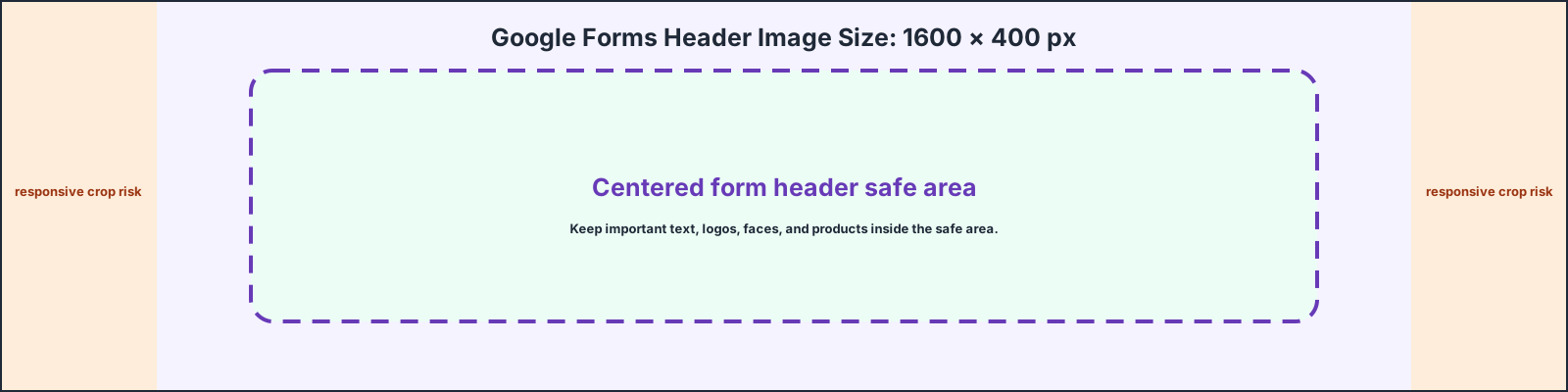
Use the SVG, PNG, or PDF starter as a visible guide for the full canvas, safe area, bleed, and crop-risk edges.
Calculator
Check aspect ratio and screen pixels
Use the prefilled target, swap orientation if needed, and copy the reduced ratio before preparing screenshots or previews.
Compare
Compare Google Forms Header Template
Open a curated comparison or send both sizes into the compare tool with a fragment URL.
Platform notes
Requirements and crop behavior
Workflow
Setup steps
Canva
Create a custom design at 1600 × 400 px. Keep text centered. Export as PNG for logos and crisp text, or JPG for photo-heavy banners.
Figma
Create a 1600 × 400 px frame. Add a centered safe-area group and leave generous side padding. Export at 1x as PNG.
Google Slides or Drawings
Create a wide 4:1 design and export as an image. If the exported file does not match 1600 × 400 px exactly, resize it with the PixelMeasures image resizer before upload.
Template
Template zones
| Zone | Use |
|---|---|
| Full canvas | Background color, pattern, illustration or soft photo |
| Central safe zone | Logo, form title, event name or short heading |
| Edge caution | Avoid small text or critical details near the edges |
| Crop preview | Check in the Google Forms theme panel before publishing |
Export
Upload checklist
- Open the Google Form.
- Open the theme customization panel.
- Choose a header image.
- Upload the 1600 × 400 px image.
- Preview the form on desktop and mobile.
- Adjust the crop if the form cuts off important details.
Guidance
Design guidance
A form header should not carry too much information. The form title and description already appear below it. Use the header for brand recognition, event mood or visual context. If you need a logo, place it near the center and leave enough breathing room.
Template
Safe-area, bleed, and crop notes
Use the downloadable guide as the full canvas. Keep critical content inside the safe area, extend backgrounds to bleed or crop-risk edges when needed, and export only after checking the destination page.
| Download | Best use |
|---|---|
| SVG | Editable vector starter file for layout tools. |
| PNG | Quick raster preview or upload starting point. |
| Shareable layout guide for print, handoff, or review. |
Related
Related pages and tools
Same branch
Nearby pages
FAQ
Common questions
What size should a Google Forms header be?
Use 1600 × 400 px as a practical production target for a Google Forms header image.
Is 1600 × 400 px an official Google requirement?
Google’s official documentation explains how to add a header image, while exact pixel sizing is often shared as practical help guidance. Preview the image in Google Forms before publishing.
What aspect ratio should I use?
Use a 4:1 wide banner ratio.
Where should I place a logo?
Keep the logo centered or near the center. Avoid placing important details at the far edges.
References
Sources and references
Original draft source confidence: practical_target_official_feature.
Google Docs Editors Help explains how to add a header image through the Google Forms theme panel. The 1600 × 400 px value should be treated as a practical production target and verified in the form preview.
-
Google Docs Editors Help: Change the theme or font of your form
Reviewed for this PixelMeasures article cluster.
-
Google Docs Editors Help Community: Google Forms header image size discussion
Reviewed for this PixelMeasures article cluster.
Last checked: 2026-05-03