
template
Business Card Template
Copy the standard business card template: 3.5 × 2 in trim, 0.125 in bleed, 3.75 × 2.25 in full canvas and 1125 × 675 px at 300 DPI.
Last checked: 2026-05-03
How we calculate this
Methodology and source handling
We start with the finished trim size, add bleed on every side, then calculate the raster pixel canvas from the full bleed size.
Quick answer
Copy-ready answer
For a standard US business card, set the finished trim size to 3.5 × 2 in. Add 0.125 in bleed on each side if artwork reaches the edge. The full bleed canvas becomes 3.75 × 2.25 in, or 1125 × 675 px at 300 DPI.
Safe area
Design inside the crop-safe area
Use this guide to keep text, logos, faces, products, and calls to action away from crop-risk edges.
Dimensions and specs
| Finished trim | 3.5 × 2 in | |
|---|---|---|
| Finished trim, metric | 88.9 × 50.8 mm | |
| Bleed per side | 0.125 in | |
| Bleed per side, metric | 3.175 mm | |
| Full bleed canvas | 3.75 × 2.25 in | |
| 300 DPI trim pixels | 1050 × 600 px | |
| 300 DPI bleed pixels | 1125 × 675 px | |
| Practical safe margin | 0.125–0.25 in inside trim |
Formula
Formula
full width = 3.5 + 0.125 + 0.125 = 3.75 in
full height = 2 + 0.125 + 0.125 = 2.25 in
300 DPI pixels = inches × 300
3.75 × 300 = 1125 px
2.25 × 300 = 675 px
Export checklist
Before you upload
Create the artboard at the template dimensions before placing content.
Keep critical details inside the safe zone and treat the outer edge as crop or bleed risk.
Resize a finished image locally when the destination needs a PNG, JPG, or WebP export.
Common mistakes
Avoid these template setup mistakes
Keep the most important content inside the guide area so responsive crops, bleed trimming, or platform overlays do not hide it.
Scaling the template into a different shape can stretch artwork or crop text; compare sizes before adapting.
Keep the editable SVG or source layout, export PNG/JPG for upload, and use PDF when you need a handoff or print guide.
Templates
Download starter files
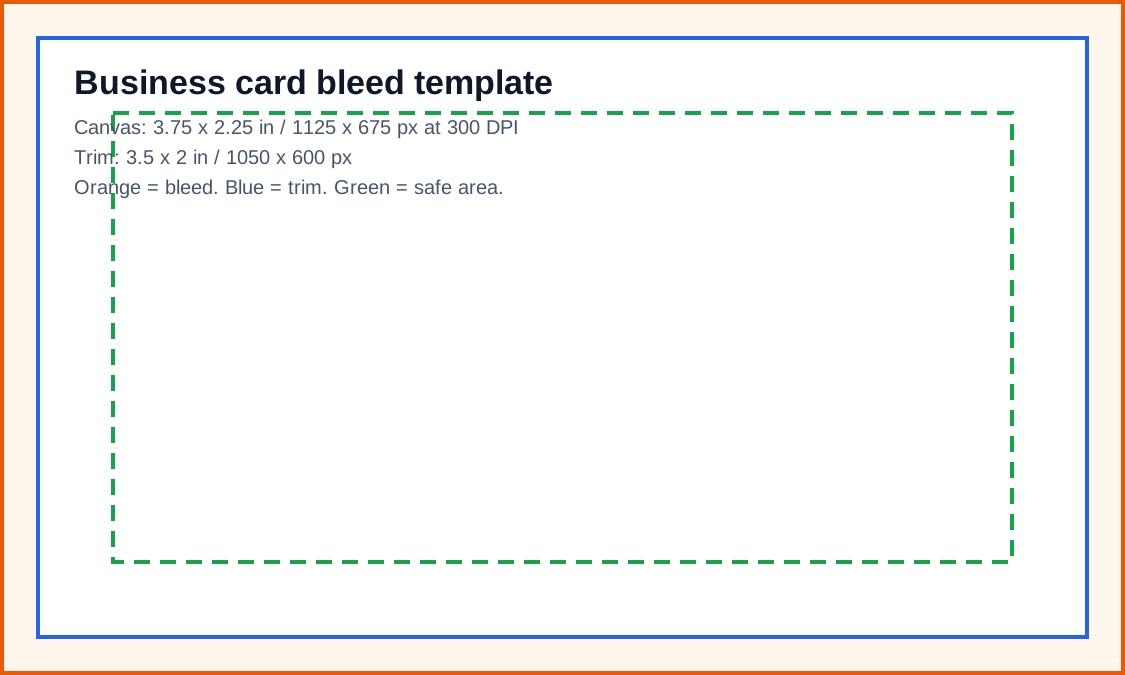
Use the SVG, PNG, or PDF starter as a visible guide for the full canvas, safe area, bleed, and crop-risk edges.
Calculator
Calculate pixels and bleed
Enter any DPI to calculate the pixel dimensions for this physical size.
Compare
Compare Business Card Template
Open a curated comparison or send both sizes into the compare tool with a fragment URL.
Workflow
Setup steps by design tool
Canva
Create a custom design at 3.75 × 2.25 in when you need a bleed-ready canvas. Add guides at 0.125 in from every edge for the trim. Keep important text inside an additional safe margin. Export as PDF Print if your printer requests crop marks and bleed.
Photoshop
Create a new document at 1125 × 675 px, set resolution to 300 pixels/inch, and use RGB or CMYK according to the printer’s instructions. Add trim guides 38 px from each outer edge, because 0.125 in × 300 DPI = 37.5 px.
Illustrator or InDesign
Create the artboard/document at 3.5 × 2 in and set bleed to 0.125 in on all sides. Export with bleed enabled. This is often cleaner than manually creating a full-size bleed canvas.
Figma
Use a frame of 1125 × 675 px for a 300 DPI raster export. Add a trim guide rectangle at 1050 × 600 px, centered inside the canvas. Use this for layout previews, then confirm print export requirements with the printer.
Guide
Download or recreate the guide
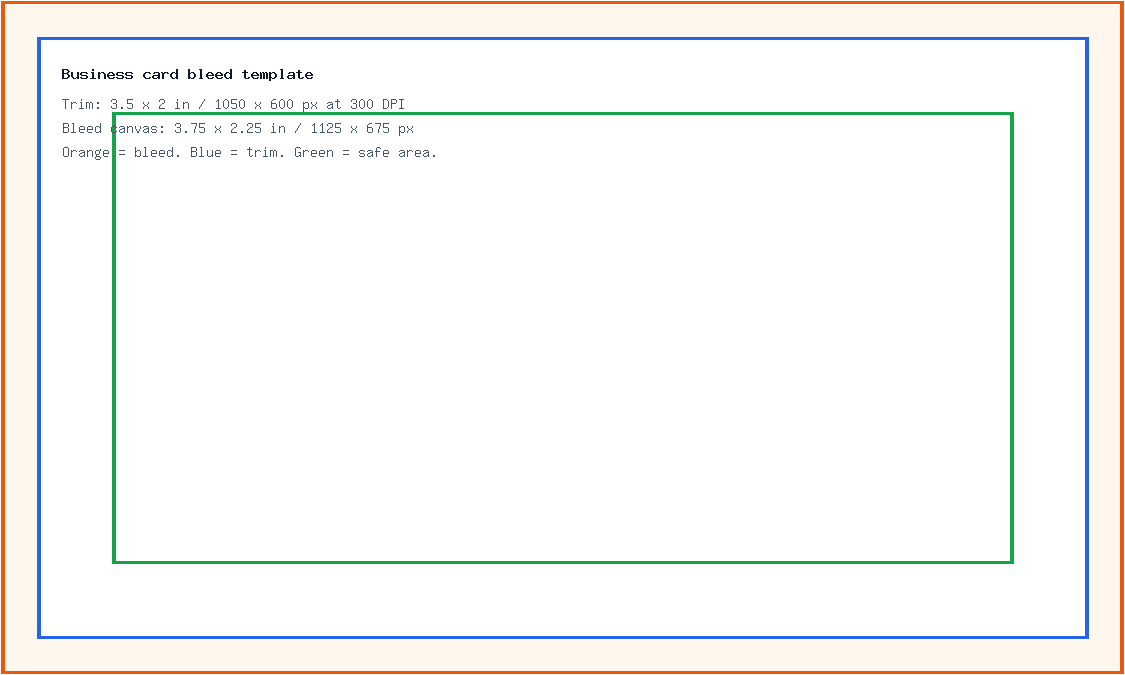
Create a landscape guide with three zones:
| Zone | Position | What belongs there |
|---|---|---|
| Bleed | Outer 3.75 × 2.25 in canvas | Background color, photos, patterns and edge artwork |
| Trim | 3.5 × 2 in finished area | The final visible card after cutting |
| Safe area | Inside the trim edge | Name, title, logo, QR code, email, phone and URL |
If the card has a colored background, extend that background all the way to the bleed edge. Do not stop it at the trim line. If the card has a QR code, keep the code well inside the safe area so it does not become clipped or hard to scan.
Template
Safe-area, bleed, and crop notes
Use the downloadable guide as the full canvas. Keep critical content inside the safe area, extend backgrounds to bleed or crop-risk edges when needed, and export only after checking the destination page.
| Download | Best use |
|---|---|
| SVG | Editable vector starter file for layout tools. |
| PNG | Quick raster preview or upload starting point. |
| Shareable layout guide for print, handoff, or review. |
Related
Related pages and tools
Same branch
Nearby pages
FAQ
Common questions
What size is a standard business card?
A common US business card trim size is 3.5 × 2 in, or 88.9 × 50.8 mm.
What size is a business card with bleed?
With 0.125 in bleed on each side, the full canvas is 3.75 × 2.25 in.
What pixel size should I use for a business card?
At 300 DPI, use 1050 × 600 px for trim size or 1125 × 675 px for a bleed-ready raster canvas.
Should I design at trim size or bleed size?
If your software supports bleed settings, design at trim size and set bleed separately. If your software does not support bleed, create the full bleed canvas and use guides for trim and safe area.
References
Sources and references
Original draft source confidence: official_or_calculated.
The pixel values above are calculated from the trim size, bleed amount and 300 DPI formula. Use the printer’s production guide as the final authority when a specific print vendor provides different bleed or safe-margin requirements.
-
Adobe InDesign Help: Printer’s marks and bleeds
Reviewed for this PixelMeasures article cluster.
-
Adobe Photoshop Help: Image size and resolution
Reviewed for this PixelMeasures article cluster.
Last checked: 2026-05-03